This is a great free tool to handle all your cloning / partitioning / hard disk management requirements http://www.partitionwizard.com. This time it had a small hitch though, as I cloned my 640GB drive to new 1TB drive via USB connection. It copied everything fine, but when I swapped drives and tried to boot using the new HD -- I had no luck. The master boot records (MBR) needed some fixing, is what I gathered from some detective work.
Steps to get around the situation:
- In Windows 7 use the 'Create a System Repair Disc' (assuming you still have a CD burner!)
- Connect your new HD via USB
- Use Partition Wizard to clone your active drive to the new one (this is possibly an overnight operation of a few hours)
- Once the operation is done, swap in the new hard disk, keep your fingers crossed and try booting
- No boot errors, Windows starts as per usual? GREAT! If not, boot into the CD we made earlier (change your BIOS settings or use the appropriate shortcut to do this)
- The repair tool will start, it will detect the copied Windows partition on your new HD, select it
- Go to the 'Command Prompt' once you get to the menu
- type 'bootrec /fixmbr' and that should fix things up. Try re-booting.
- If it didn't work, boot back into the CD, follow the process above, type 'bootrec /?' for more repair option.
- Once you're back inside Windows, remember to format/allocate the unallocated space on your shiny new larger hard drive! You can use Partition Wizard for this too.
DONE.
April 1, 2015


November 4, 2014
List of Chrome URLs
Calling all geeks: cool stuff you can do in Google Chrome, use the commands below.
(Don't click on the links, that will take you to Quora, as I got it from there.)
The following pages are for debugging purposes only. Because they crash or hang the renderer, they're not linked directly; you can type them into the address bar if you need them.
(Don't click on the links, that will take you to Quora, as I got it from there.)
- chrome://accessibility
- chrome://appcache-internals
- chrome://apps
- chrome://blob-internals
- chrome://bookmarks
- chrome://cache
- chrome://chrome
- chrome://chrome-urls
- chrome://components
- chrome://conflicts
- chrome://crashes
- chrome://credits
- chrome://devices
- chrome://dns
- chrome://downloads
- chrome://extensions
- chrome://flags
- chrome://flash
- chrome://gcm-internals
- chrome://gpu
- chrome://help
- chrome://histograms
- chrome://history
- chrome://indexeddb-internals
- chrome://inspect
- chrome://invalidations
- chrome://ipc
- chrome://media-internals
- chrome://memory
- chrome://memory-internals
- chrome://nacl
- chrome://net-internals
- chrome://newtab
- chrome://omnibox
- chrome://password-manager-
internals - chrome://plugins
- chrome://policy
- chrome://predictors
- chrome://print
- chrome://profiler
- chrome://quota-internals
- chrome://serviceworker-interna
ls - chrome://settings
- chrome://signin-internals
- chrome://stats
- chrome://suggestions
- chrome://sync-internals
- chrome://system
- chrome://terms
- chrome://thumbnails
- chrome://tracing
- chrome://translate-internals
- chrome://user-actions
- chrome://version
- chrome://view-http-cache
- chrome://voicesearch
- chrome://webrtc-internals
- chrome://webrtc-logs
The following pages are for debugging purposes only. Because they crash or hang the renderer, they're not linked directly; you can type them into the address bar if you need them.
April 16, 2014
How to connect an android phone to an WiFi AD-HOC network
https://www.youtube.com/watch?v=ksKun4i-dns
Technically you should be fine with the first 5 steps. After that, if it dies at any point, repeat steps 1 to 4. Make a batch file!
1. start, cmd - run as administrator
2. netsh wlan set hostednetwork mode="allow" ssid=test key=12345678
3. netsh wlan stop hostednetwork
4. netsh wlan start hostednetwork
5. Share the internet connection between Microsoft virtual WIFI
miniport adapter and YOUR INTERNET CONNECTION
6. Connect your android phone/tablet to new network called "test" enter the
password: "12345678" and set the DHCP settings to static or manual:
8. After restarting windows, you should again type 4.step command. OR just create a shortcut on your desktop with netsh wlan start hostednetwork.
Technically you should be fine with the first 5 steps. After that, if it dies at any point, repeat steps 1 to 4. Make a batch file!
1. start, cmd - run as administrator
2. netsh wlan set hostednetwork mode="allow" ssid=test key=12345678
3. netsh wlan stop hostednetwork
4. netsh wlan start hostednetwork
5. Share the internet connection between Microsoft virtual WIFI
miniport adapter and YOUR INTERNET CONNECTION
6. Connect your android phone/tablet to new network called "test" enter the
password: "12345678" and set the DHCP settings to static or manual:
8. After restarting windows, you should again type 4.step command. OR just create a shortcut on your desktop with netsh wlan start hostednetwork.
April 2, 2013
Notes for noob Android users!
I've had a slew of new Android smartphone users around me, including my mom! So imma share a few things I end up repeating and have experienced with all of 'em on the qwerks of Android.
The keyboard is switchable!
Long-press a blank text box to access Input Methods and see what options you have. I highly recommend getting Swype. On most new phones it's available in Input Options, you just have to enable it. It will take you a few minutes to get used to it, trust me. You'll spend much less time typing, and correcting what you type. If it's not on your phone, get it off Swype.com as it doesn't appear on Google Play (at least for me).
When adding contacts, choose to store them in your Gmail account:
This way, it auto-syncs (provided you turn on the phone-wide sync once in awhile, if you leave it switched off). You don't need to use backup apps included by the phone manufacturer this way. If you're using a Nexus phone this would be the default, this one's more for the rest of us. Also, it is easier to sort your contacts, as you can open up Gmail on your computer and sort it there, and it would sync to your phone. If you're importing contacts from another phone, if you can figure out a way to get it into Gmail, then you've got it on your phone too!
Same goes for Calendaring, I prefer to use Google Calendar, or an app that runs on top of Google Calendar. This way, you only need a browser on your computer to access it. You get the drift, use the services provided by Google, it's easier on the phone, while syncing and backups become a non-issue.
There is more than one button!
This is mostly for the Apple people. In addition to the Home button, there is a Menu button, usually a hardware or (more elusive) touch button, which will reveal much when pressed! Many apps have no indication that there is a menu with awesome options hidden away inside it. So remember, you have a Menu Button!
Most phones will have you signed in to Google Talk, and you won't know this. People will message you, and you might not know this also! So do remember to check, or sign out of it.
Tips for saving battery:
- Explore apps on your phone and see what else you're signed into or which apps you don't use are running in the background. Turn them off or remove them altogether.
- Turn off sync: You can switch it off for your entire phone, or selectively turn off certain apps under Settings, if you really need your email but want to avoid things like Facebook, for example.
- Adjust your screen's brightness settings. Large screens can drain batteries real fast.
- 3G/4G connections will use up the most amount of battery. Switch to Wi-fi or 2G for a longer battery life. Or turn off all data connections for a way longer battery life and some notification-free silence!
- Get an app like Juice Defender which will help you conserve battery.
Security-wise:
The keyboard is switchable!
Long-press a blank text box to access Input Methods and see what options you have. I highly recommend getting Swype. On most new phones it's available in Input Options, you just have to enable it. It will take you a few minutes to get used to it, trust me. You'll spend much less time typing, and correcting what you type. If it's not on your phone, get it off Swype.com as it doesn't appear on Google Play (at least for me).
When adding contacts, choose to store them in your Gmail account:
This way, it auto-syncs (provided you turn on the phone-wide sync once in awhile, if you leave it switched off). You don't need to use backup apps included by the phone manufacturer this way. If you're using a Nexus phone this would be the default, this one's more for the rest of us. Also, it is easier to sort your contacts, as you can open up Gmail on your computer and sort it there, and it would sync to your phone. If you're importing contacts from another phone, if you can figure out a way to get it into Gmail, then you've got it on your phone too!
Same goes for Calendaring, I prefer to use Google Calendar, or an app that runs on top of Google Calendar. This way, you only need a browser on your computer to access it. You get the drift, use the services provided by Google, it's easier on the phone, while syncing and backups become a non-issue.
There is more than one button!
This is mostly for the Apple people. In addition to the Home button, there is a Menu button, usually a hardware or (more elusive) touch button, which will reveal much when pressed! Many apps have no indication that there is a menu with awesome options hidden away inside it. So remember, you have a Menu Button!
Most phones will have you signed in to Google Talk, and you won't know this. People will message you, and you might not know this also! So do remember to check, or sign out of it.
Tips for saving battery:
- Explore apps on your phone and see what else you're signed into or which apps you don't use are running in the background. Turn them off or remove them altogether.
- Turn off sync: You can switch it off for your entire phone, or selectively turn off certain apps under Settings, if you really need your email but want to avoid things like Facebook, for example.
- Adjust your screen's brightness settings. Large screens can drain batteries real fast.
- 3G/4G connections will use up the most amount of battery. Switch to Wi-fi or 2G for a longer battery life. Or turn off all data connections for a way longer battery life and some notification-free silence!
- Get an app like Juice Defender which will help you conserve battery.
Security-wise:
Lookout is one of my favourite apps. It keeps bugs out of your phone, and in the event of a lost phone it can help you out. And if you've synced everything to Google you'll never have to worry about losing much with a dead/lost phone.
I know I haven't gone in to detail on the how-to's, but now that you know what to do, you can refer to your manual or look it up!
I know I haven't gone in to detail on the how-to's, but now that you know what to do, you can refer to your manual or look it up!
January 17, 2012
Out of internal memory on your Android phone?
This is a problem that is going to be a problem of the past soon, but till then some of us still gotta deal with it. My LG Optimus One has an useless amount of internal memory (170Mb user accessible according to GSMArena). It's a bitch when free space goes below 20Mb, everything stops syncing.. and then there came that day where I couldn't move/remove anymore apps, or had no more caches to clear!
Here's METHOD ONE, which got me a decent amount of space (via Androinica):
1. First you have to enable USB debugging on your Android device from Settings > Applications > Development > USB debugging.
2. Now you need to download and install the Android SDK. Once you’ve downloaded and extracted the package to the folder of your choice, run SDK Setup.exe and click on Available Packages to the left. If you get an error message at this point, enable “Force https://…” in the Settings. From the list of available packages, select “Usb Driver package”, click on the Install Selected button in the bottom right corner and follow the prompts.
3. Connect your phone to your computer with a USB-cable. Your OS will prompt you to install new drivers. Choose to install them from the android-sdk/usb_driver folder. Do not mount your device; you only need to plug-in the cable.
4. Next, run a command prompt and navigate to the Android-SDK\tools folder. In Windows, this is done by selecting Run from the Start Menu (or by pressing Win+R) and typing cmd. You change drives in the command prompt by entering the drive letter followed by a colon (:), and change folders with the CD command. For example, to enter the Android-SDK folder, simply type cd android-sdk.
(Update: I believe this folder is different in the newer SDKs, look for a text file with updated file locations. It's in there somewhere!)
5. In the Android-SDK\tools folder, type in adb devices and you should get a serial number starting with “H” in return. All you have to do next is entering adb shell pm setInstallLocation 2. Voilà, you’re done! Android will now install apps to the SD card by default.
6. To switch back to storing software on the internal memory, enter adb shell pm setInstallLocation 0.
Install App 2 SD and it will let you move out some apps to SD that you couldn't earlier, and help you clear out some caches you may have missed.
That last me a couple of months, until I got a few more apps and got stuck again!
Here's METHOD TWO in summary:
1) Root you phone:
Google for your phone model and Android version to find the right tools. I used SuperOneClick and the GingerBreak method. Note: you don't have to install a custom ROM, just root your phone only.
2) Partition your SD card so that it has two partitions:
Connect your phone to your computer, mount the SD card and partition it. I used Magic Partition Manager on my PC.
- Shrink the existing partition to make space for a 2nd partition
- I created a FAT32 partition in the new space
- Don't forget to make it a primary partition
- Mount it and reboot your phone
3) Install Link2SD
Enable USB Debugging on your phone. In the app's options, select Create Link. You'll have to reboot your phone once or twice (follow instructions given in the app each time you open it after booting)
If all goes well, you will be able to move more apps from within Link2SD, and if you can't move them you can create a link to the partition on SD.
After all that madness I've recovered a measely 15mb or so of internal memory.. which is big deal! Now lets see how long it last.
April 14, 2011
Google Chrome: quickly search your history, and other customisations
I'm a Chrome fan, but this is one thing Firefox, and only Firefox (so far), does really well - the FF Awesome Bar is pretty awesome when it comes to searching. When you type something into the address bar, it searches the net, your history, your bookmarks etc, all at once.
Chrome is not so good at this, especially the stuff in your history. I really have to open up the history and get down to some dirty searching sometimes.
Here's a quick way to get around this if you have the same problem.
Right click the Chrome address bar and choose 'Edit Search Engines'. Add a new entry there with the values..
Name: chrome history (or whatever you want to call it)
Keyword: h
URL: chrome://history/#q=%s
Done!
Now all you gotta do is type an 'h' in the address bar, before you type what you're looking for, and Chrome will search your history for you.
A couple of search strings I came across:

If you want to customize your search string to auto-include keywords you always include:
(Example using Google search)
http://www.google.com/search?q=%s&q=yourkeywordgoeshere
You can chain more keywords by adding '&q='
Chrome is not so good at this, especially the stuff in your history. I really have to open up the history and get down to some dirty searching sometimes.
Here's a quick way to get around this if you have the same problem.
Right click the Chrome address bar and choose 'Edit Search Engines'. Add a new entry there with the values..
Name: chrome history (or whatever you want to call it)
Keyword: h
URL: chrome://history/#q=%s
Done!
Now all you gotta do is type an 'h' in the address bar, before you type what you're looking for, and Chrome will search your history for you.
A couple of search strings I came across:

If you want to customize your search string to auto-include keywords you always include:
(Example using Google search)
http://www.google.com/search?q=%s&q=yourkeywordgoeshere
You can chain more keywords by adding '&q='
November 8, 2010
Downloading mioTV Singtel BPL Highlights on your iPhone
If you happen to be subscribed to Singtel mio Stadium on your
mobile phone (a great service for its postpaid customers at $5 a
month) then here's a handy tip for you. This is extremely handy if you
wish to watch the clips again, or in places with low reception (such as the subway) or simply show them to your friends later!
You will need a few things before you get started:
Click on a highlight link to download it
 Safari Download Manager should give you the following options:
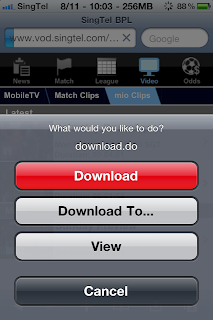
Select Download
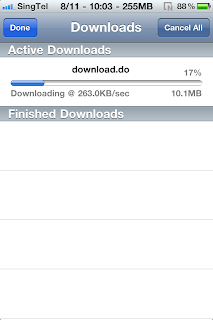
The download.do file itself is not a recognisable media file and will
not be playable. As such you will need to rename it appropriately.
With iFile navigate to the correct folder (/var/mobile/Media/Downloads by default) and click on
the arrow next to the file to view its properties.
Delete the .do (JAVA servlet file) extension and add .m4v (MPEG-4 Video File) instead.
Click Done and you're good to go!
You can either view the files with iFile's native player or use VLC!
If you wish to easily access the files from VLC for later viewing
simply cut the file (using iFile) and paste it in
/var/mobile/Applications/VLC/Documents
You might have to turn on Application Names in iFile's settings if you
have trouble finding the VLC folder.
NB: I've not tried this with the Safari Download Plugin but it might
still work.
mobile phone (a great service for its postpaid customers at $5 a
month) then here's a handy tip for you. This is extremely handy if you
wish to watch the clips again, or in places with low reception (such as the subway) or simply show them to your friends later!
You will need a few things before you get started:
- a jailbroken iPhone
- subscription (and therefore access) to Singtel BPL on mobile
- Safari Download Manager (available on Cydia)
- iFile (available on Cydia)
- VLC (available on iTunes)
Click on a highlight link to download it
 Safari Download Manager should give you the following options:

Select Download

The download.do file itself is not a recognisable media file and will
not be playable. As such you will need to rename it appropriately.
With iFile navigate to the correct folder (/var/mobile/Media/Downloads by default) and click on
the arrow next to the file to view its properties.
 |  |
Delete the .do (JAVA servlet file) extension and add .m4v (MPEG-4 Video File) instead.
Click Done and you're good to go!
You can either view the files with iFile's native player or use VLC!
If you wish to easily access the files from VLC for later viewing
simply cut the file (using iFile) and paste it in
/var/mobile/Applications/VLC/Documents
You might have to turn on Application Names in iFile's settings if you
have trouble finding the VLC folder.
NB: I've not tried this with the Safari Download Plugin but it might
still work.
October 13, 2010

September 20, 2010
.NET 3.5 causing problems in software installations
I've been trying to install ArcGIS 10 on Windows 7 and I kept getting this error. All day long! Frustrating stuff.
Some searching showed that people trying to install iTunes and other applications have also had similar issues.
So what I gathered is, it's a .NET problem. The error message can vary but what you need to look out for is "an error occurred during the installation of assembly..". This article gave me the required clues. The fixes in it are slightly back-dated, so I had to figure something out myself.
For some reason the .NET 3.5 or 3.5 SP1 standalone installer does not run, at all. (I tried running as Administrator etc too). Windows 7 comes with .NET 3.5 which you can remove and re-add (Control Panel > Programs and Features). This seemed to be the only way I could 'reinstall' .NET 3.5, which is required by ArcGIS.
I also installed .NET 4. I'm not sure if this had any effect or not, but after these last two steps, the installations finally completed!
Some searching showed that people trying to install iTunes and other applications have also had similar issues.
So what I gathered is, it's a .NET problem. The error message can vary but what you need to look out for is "an error occurred during the installation of assembly..". This article gave me the required clues. The fixes in it are slightly back-dated, so I had to figure something out myself.
For some reason the .NET 3.5 or 3.5 SP1 standalone installer does not run, at all. (I tried running as Administrator etc too). Windows 7 comes with .NET 3.5 which you can remove and re-add (Control Panel > Programs and Features). This seemed to be the only way I could 'reinstall' .NET 3.5, which is required by ArcGIS.
I also installed .NET 4. I'm not sure if this had any effect or not, but after these last two steps, the installations finally completed!
February 18, 2010
Windows 7 Firewall blocks Windows Update by default?
So this seems to happen on some installations! It didn't happen at home, but it happened on my work PC. Weird.
Here's how to fix it:
Control panel -> Network and Sharing Center. Click "Change adaptor settings" (on the left hand side). Right click "Local area connection" and select "properties"
In the "This connection uses the following items" pane click on "Internet Protocol Version 4 (TCP/IPv4) Don't untick it....just click on the line so it's highlighted Click "Properties"
Check the box "Use the following DNS server addresses" and input:
Preferred DNS server: 4.2.2.1
Alternate DNS server: 4.2.2.2
Here's how to fix it:
Control panel -> Network and Sharing Center. Click "Change adaptor settings" (on the left hand side). Right click "Local area connection" and select "properties"
In the "This connection uses the following items" pane click on "Internet Protocol Version 4 (TCP/IPv4) Don't untick it....just click on the line so it's highlighted Click "Properties"
Check the box "Use the following DNS server addresses" and input:
Preferred DNS server: 4.2.2.1
Alternate DNS server: 4.2.2.2
February 3, 2010
New Homepage test design by Google is a #Fail

Well in the above screenshot you can see that Google is testing a new homepage design. Personally I prefer the current minimalist fade in homepage. And I am not liking this design very much. Cause not only this new design has way too many words for my liking but also the words are repeated. The words "Privacy" and "Copyright 2010" are repeated twice. I see no reason for those words to be that important to be repeated twice. Whereas I cant find the link to perform "Advanced Search" and the link for "Language Tools".
On another note, I am not sure if anyone else is getting the same view. Feel free to leave a comment if you have anything to say on this new design.
January 21, 2010
Firefox Apostrophe Find As You Type Search Link Bug Solution
I had a problem with Firefox where every time I typed a ' it would open the search box, even when typing emails! If you have the same problem here's how you fix it.
Firefox Apostrophe Find As You Type Search Link Bug Solution
Firefox Apostrophe Find As You Type Search Link Bug Solution
December 21, 2009
Upload JPG files to Google Docs
I actually came across this accidentally. I was actually trying to upload 2 PDF files into my Google Docs. But by mistake I chose the JPG version of them to upload. Well, GDocs doesn't allow uploading of JPG files. So technically I should have got an error message saying something along the lines of "File type not supported" (which I did get later when I tried to upload a PNG file).

But instead I got an error message saying something along the lines of "The file size is more than 500KB". Seeing this message I assumed that when you upload a JPG file of size <= 500KB, GDocs would create a new document and add the JPG file as an image in the document file. The mentioned size 500KB caused me to make such an assumption. Another option I hoped for was it would let me store JPG files of size <= 500KB. I really wanted it store the JPG files as I have been wanting this feature for quite some time now especially with all the news/rumors of Google Drive.
So I actually found an image file (a PNG file this time round) of size <= 500KB in my computer and tried uploading to GDocs. As mentioned above the attempt failed with an error message along the lines of "File type not supported".
Hence I decided to hunt my computer for a JPG file of size <= 500KB. After finding one, I tried uploading it. And voilà it worked as I had assumed (Added the JPG file as an image in a new document). Here is the screenshot of uploaded JPG file.

I haven't got the chance to test other image file formats such as BMP, GIF, etc. If any of you do, feel free to post the results in comments.
September 19, 2009
The Wonky Facebook
Below are two screenshots of the many Facebook error messages I've been getting recently.
I am still trying to comprehend the logic of the error message in the screenshot below. (Images edited to protect identity of certain people).

This one you can't even try to start comprehending!

I am still trying to comprehend the logic of the error message in the screenshot below. (Images edited to protect identity of certain people).

This one you can't even try to start comprehending!

August 15, 2009
Watching Singtel MobileTV (mio TV) on your PC
I recently received an SMS from Singtel saying that I would get to watch the Football Frenzy channel (shows UEFA Champions League Matches live) for free until October 31st. Excited, I contacted Singtel's customer service to check if it affected my data usage or if I would get charged unknowingly. Once satisfied, I navigated to Singtel IDEAS on my 3GS and found a few options, including one for Entertainment & TV (mio), which then took me to the various options available including Channel News Asia (free), Bloomberg (free), Channel 8 (free) and Football Frenzy (paid).
Since at this point in time Football Frenzy wasn't ready yet (I suspect it will be in a few days for the Champions League kickoff), I tried out the other channels on my iPhone and realised the stream quality was extremely good with minimal lag.
I then wanted to check if the quality was better with WiFi and got this error message when I tried to reload the page:
Since at this point in time Football Frenzy wasn't ready yet (I suspect it will be in a few days for the Champions League kickoff), I tried out the other channels on my iPhone and realised the stream quality was extremely good with minimal lag.
I then wanted to check if the quality was better with WiFi and got this error message when I tried to reload the page:
This site is only available when you use your iPhone3G with SingTel's unrivalled 3G network. It is not available to SingTel Prepaid customers, when using WiFi or the public internet.This suggested to me that the website requires 2 things to work:
- Using Singtel 3G network
- Using an iPhone
Indeed, tethering my iPhone to my PC and navigating to the website gave me the same error as obviously the second check failed. Indeed, if the website could be tricked into thinking an iPhone was accessing the site, this should (at least in theory) work.
From previous knowledge, most websites make use of a user-agent string to detect what application, OS and version the client accessing the site is using. Indeed, if you ever wondered how a website knew what version of Firefox, IE or Safari you were running, this is most likely the check implemented on it. Due to the evolution of the WWW and IE's dominance, several browsers allowed you to fake the user-agent string of another browser. You could therefore fool the website into thinking you were running IE 7 when in fact you were running Firefox 3, and therefore then receive content originally intended for IE 7 users.
Posted below is a workaround I discovered that works and allows you to then play mio on your computer. Note: QuickTime is required as the streams are .mov format
Tether your iPhone to your PC via USB or Bluetooth
- Use Firefox (or any other browser that allows you to switch user-agents)
Download the User Agent Switcher add-on for Firefox (or an equivalent if it exists for your browser). This add-on allows you to easily switch between user-agents and already has a profile for iPhone 3G included, although others can easily be added.
Navigate to Singtel IDEAS and click on Entertainment & TV
You're now watching mio TV on your PC!
If you want to watch the channel in full screen (as the resolution of the content is for the iPhone), run QuickTime and open the URL that is being displayed on your browser.
I'm not quite sure what sort of check Singtel has for the 3G usage, but if it is simply being on Singtel's 3G network (postpaid), then this MIGHT work even for people with any other phone. I am yet to confirm whether this works or not.
June 20, 2009
Jailbreaking an Unlocked iPhone OS 3.0 on Windows
I waited, like many others (im)patiently for the 3.0 firmware ever since its release date was announced at WWDC. It has been known for a while, that the current iPhone 3G will ALWAYS be jailbreakable, until the hardware is upgraded. As such, if you are as dependent on jailbreaking as me, it was not a question of whether I should upgrade, but rather when.
After hours of following @MuscleNerd and refreshing my tweets ever so often, the time had arrived - Jailbreaking for OS 3.0 had been released with one caveat - only Pwnage had been released, which unfortunately only works on Intel powered Macs, which of course I don't own!
As such, I realised that a PC owner could restore to an already jailbroken custom IPSW (firmware) created on a Mac, but not without its own share of issues. After several hours of a non-functional phone, these are the instructions for jailbreaking your iPhone on Windows without QuickPWN or redsn0w:
Software Required:
If you have an iPhone 3G 2.2.1 Jailbroken, these are the steps you should take:
If you are already running the stock 3.0 OS, the steps are a bit more complicated because iTunes 8.2 will NOT let you restore to the custom IPSW or downgrade to 2.2.1. These are the instructions:
After hours of following @MuscleNerd and refreshing my tweets ever so often, the time had arrived - Jailbreaking for OS 3.0 had been released with one caveat - only Pwnage had been released, which unfortunately only works on Intel powered Macs, which of course I don't own!
As such, I realised that a PC owner could restore to an already jailbroken custom IPSW (firmware) created on a Mac, but not without its own share of issues. After several hours of a non-functional phone, these are the instructions for jailbreaking your iPhone on Windows without QuickPWN or redsn0w:
Software Required:
- iTunes 8.1.1 found at http://www.oldapps.com/itunes.php
- iTunes 8.2 from www.apple.com/iTunes
- Custom Jailbroken 3.0 IPSW: Torrent
- QuickPWN RC-3 found at http://www.quickpwn.com/2008/09/download-quickpwn-rc3.html
- Quick PWN 225-2 found at http://quickpwn2-2-1.googlecode.com/files/QuickPwn-225-2.zip
- Official 2.0.2 IPSW found at http://appldnld.apple.com.edgesuite.net/content.info.apple.com/iPhone/061-5241.20080818.t5Fv3/iPhone1,2_2.0.2_5C1_Restore.ipsw
- Official 2.2.1 IPSW found at http://appldnld.apple.com.edgesuite.net/content.info.apple.com/iPhone/061-5828.20090127.aQLi8/iPhone1,2_2.2.1_5H11_Restore.ipsw
If you have an iPhone 3G 2.2.1 Jailbroken, these are the steps you should take:
- Open iTunes 8.2
- Backup iPhone data
- Hit Shift+Restore and select the custom IPSW you downloaded earlier
- Restore iPhone data
- You should have a jailbroken iPhone 3G with OS 3.0
If you are already running the stock 3.0 OS, the steps are a bit more complicated because iTunes 8.2 will NOT let you restore to the custom IPSW or downgrade to 2.2.1. These are the instructions:
- If you have installed 3.0 already, this assumes you are running iTunes 8.2
- Close iTunes 8.2
- Run QuickPWN RC-3 to install the official 2.0.2 IPSW on the iPhone.
- When the iPhone screen turns white (while the exploit is being uploaded), disconnect your iPhone - the screen will remain white.
- Close QuickPWN RC-3
- Open iTunes 8.2 and Shift+Restore to the official 2.2.1 IPSW
- You will probably get Error 1013 This is fine for now. QuickPWN 225-2 should fix that.
- Uninstall iTunes 8.2 and install iTunes 8.1.1 Alternatively, use another computer with iTunes 8.1.1 already installed. This is because QuickPWN 225-2 does not work with iTunes 8.2
- Close iTunes 8.1 and run QuickPWN 225-2
- Follow the RESET steps at the beginning, this should fix ERROR 1013.
- Jailbreak your iPhone 3G 2.2.1 using QuickPWN 225-2
- Uninstall iTunes 8.1.1 and install iTunes 8.2
- Shift+Restore to 3.0 Jailbroken Custom IPSW
- Voila, you should have a Jailbroken iPhone 3G running 3.0!
It has come to the author's note, that the Dev-Team has already released redsn0w, which allows you to jailbreak with relative ease. If you are unsure, it is best to use this tool, than the method above. The method was used because redsn0w or QuickPWN had not been released by the Dev-Team yet.
May 21, 2009
Simplify Media - Remotely Accessing Your Music Library On Your iPhone
Remotely accessing your music library is definitely a feature I didn't know I needed until I found out it were possible! One of the biggest selling points of the iPhone is in fact its music playing capabilities since it is essentially an iPod Touch with extras. However it definitely lacks in the storage department with even 16GB not cutting it to encompass most people's music libraries (hell even my iRiver which is almost 5 years old has 20GB)!
Personally, I hate having to fire up iTunes to sync my iPhone (almost as much as I hate a lowercase i in front of everything Apple) because of the need of physically using the cable. I use Appstore (read: Installous) for all the apps that I need (well not really) given that I have 30GB of data that I have not much clue of how to make use of.
Perhaps one of the main uses of iTunes (and the only reason it's on my PC) is to put songs on the iPhone. However I'm too lazy to do this everytime I add a new album or song to my library. This is where accessing your music library remotely solves all these problems at once.
Simplify Media is essentially a music streaming app, which you install on your computer (Windows, Mac, Linux) and set up a free account to either share your iTunes, Windows Media Player or WinAmp library and access it via an app for the iPhone or iPod Touch called Simplify Music 2.
This is quite nifty because unlike a few other apps that allow remote streaming, this one works on WiFi, EDGE/GPRS and 3G! It has a built-in search feature and the interface on the iPhone is quite similar to the iPod app itself. As an added bonus it has album cover, artist info as well as lyrics!
Another noteworthy feature has to be the ability to invite up to 30 people (who can use Simplify Media which is free) to access your library no matter where they are. It then pops up as a shared library in iTunes, WMP or WinAmp (based on their specified preferences). This means you can also access other people's libraries on your iPhone too!
Check out a video of the app on the iPhone as well as the desktop version for Windows, Mac and Linux:
Personally, I hate having to fire up iTunes to sync my iPhone (almost as much as I hate a lowercase i in front of everything Apple) because of the need of physically using the cable. I use Appstore (read: Installous) for all the apps that I need (well not really) given that I have 30GB of data that I have not much clue of how to make use of.
Perhaps one of the main uses of iTunes (and the only reason it's on my PC) is to put songs on the iPhone. However I'm too lazy to do this everytime I add a new album or song to my library. This is where accessing your music library remotely solves all these problems at once.
Simplify Media is essentially a music streaming app, which you install on your computer (Windows, Mac, Linux) and set up a free account to either share your iTunes, Windows Media Player or WinAmp library and access it via an app for the iPhone or iPod Touch called Simplify Music 2.
This is quite nifty because unlike a few other apps that allow remote streaming, this one works on WiFi, EDGE/GPRS and 3G! It has a built-in search feature and the interface on the iPhone is quite similar to the iPod app itself. As an added bonus it has album cover, artist info as well as lyrics!
Another noteworthy feature has to be the ability to invite up to 30 people (who can use Simplify Media which is free) to access your library no matter where they are. It then pops up as a shared library in iTunes, WMP or WinAmp (based on their specified preferences). This means you can also access other people's libraries on your iPhone too!
Check out a video of the app on the iPhone as well as the desktop version for Windows, Mac and Linux:
April 2, 2009
The Hype about Skype on iPhone (and How to Get The Most of It)
If you haven't heard yet, Skype has recently been released on the iPhone!
So what's the big deal? Indeed numerous handsets such as a few Nokias have had it for a while and it has been possible for a while to use Skype on the iPhone itself via a few apps such as Truphone and Fring, which allow you to connect to other instant messaging services as well.
However, the app which I've been trying for most of today definitely deserves to be on the must have app list. You can do pretty much almost anything you can do on Skype from your PC such as chat, add and search for contacts and even make both SkypeOut and free Skype-to-Skype calls (albeit for a few annoying restrictions, which I shall get to talking about a bit later in this post).
The interface is a lot quicker, more responsive, and a lot cleaner than any other app that you can use to connect to Skype with.
Unfortunately, due to Apple guidelines, with the default app, you can only make calls when you are connected to Wifi but you can still sign in, chat and see who's online from regular EDGE/GPRS/3G.
Another annoying nag, is the fact that it is not possible to run apps in the background, which means you HAVE to be on the Skype screen to be able to send and receive messages and calls. Indeed, you have to either know when people are going to skype you or leave it running all the time, which sort of detracts from the whole point of it.
Nevertheless, this tutorial will help you get past MOST of the aforementioned annoyances:
So what's the big deal? Indeed numerous handsets such as a few Nokias have had it for a while and it has been possible for a while to use Skype on the iPhone itself via a few apps such as Truphone and Fring, which allow you to connect to other instant messaging services as well.
However, the app which I've been trying for most of today definitely deserves to be on the must have app list. You can do pretty much almost anything you can do on Skype from your PC such as chat, add and search for contacts and even make both SkypeOut and free Skype-to-Skype calls (albeit for a few annoying restrictions, which I shall get to talking about a bit later in this post).
The interface is a lot quicker, more responsive, and a lot cleaner than any other app that you can use to connect to Skype with.
Unfortunately, due to Apple guidelines, with the default app, you can only make calls when you are connected to Wifi but you can still sign in, chat and see who's online from regular EDGE/GPRS/3G.
Another annoying nag, is the fact that it is not possible to run apps in the background, which means you HAVE to be on the Skype screen to be able to send and receive messages and calls. Indeed, you have to either know when people are going to skype you or leave it running all the time, which sort of detracts from the whole point of it.
Nevertheless, this tutorial will help you get past MOST of the aforementioned annoyances:
- You need a jailbroken phone for this. So there's no point continuing if your phone isn't jailbroken yet! Infact this is probably a great reason to jailbreak if you haven't done so already!
- Install Skype from the Appstore or download the IPA from elsewhere.
- Install MobileSubstrate from Cydia. Please note, existing MobileSubstrate users require an update to 0.9.2805-1 which was released today. For more information on the compatibility issues, read this.
- Install VoIPover3G from Cydia - this tricks any app that is configured into thinking that it is using WiFi when in fact it is using 3G/EDGE/GPRS and therefore overcome the need of a WiFi connection to make calls!
- Edit this file either via Terminal or SSH (easier and preferred method): "VoIPover3G.plist" located in /Library/MobileSubstrate/DynamicLibraries/ Add the following string to configure Skype "skype.com.skype" (NB all should be in lowercase. You will probably have to add a comma to separate the previous entry - just follow the layout)
- Install Backgrounder from Cydia. Configure the app to have Skype as an Auto-Enabled Application. This will basically keep Skype running in the background when you hit the Home button, not unlike Skype being minimised to your System Tray! You will also hear your phone ring if someone skypes you - highly recommended!
- If you have IntelliScreen installed, under Performance - Select App Launch Boost and make sure VoIPover3G and Backgrounder are "On"
- Sign in and enjoy an always-on solution for Skype that you can make and receive calls from no matter what connection you have! (NB: Data charges might apply!)
I've made and received a few test calls for a noticeable length (>20 mins) and the call quality is nothing short of amazing on 3G, with a quite unnoticeable lag! As at this moment, you can't make a conference call from the app, but you can definitely take part in one, if someone else initiates it. This has been tested as well, with great results on 3G!
March 18, 2009
Mystery quiz applications on the 'new' Facebook
Yet another revamp. This one isn't so good I feel. There's an information overload and it's not very legible. I liked the previous font sizing variation and the ability to select the level of detail you want. Changing the Home content according to different friend lists or applications is a cool new feature though. The only good new feature in my opinion.
Do you have quizzes turning up on your Home page? I do! Lots of them. And you can't hide them, because all the new Home can do is hide updates from that particular friend, which is not what I want it to do! I don't want to see anymore weird quizzes about birthdays an animals! I found a few of them by name and blocked them. They (2 of them) disappeared from the left side menu. Yes!!!
But no. A few minutes later I had another 2 quizzes added in! Like wtf? Whatever happened to the Facebook we had total control over??
(Notice the last 2 links)
 No, they don't turn up on your Applications page either. Any ideas anyone?
Do you have quizzes turning up on your Home page? I do! Lots of them. And you can't hide them, because all the new Home can do is hide updates from that particular friend, which is not what I want it to do! I don't want to see anymore weird quizzes about birthdays an animals! I found a few of them by name and blocked them. They (2 of them) disappeared from the left side menu. Yes!!!
But no. A few minutes later I had another 2 quizzes added in! Like wtf? Whatever happened to the Facebook we had total control over??
(Notice the last 2 links)
 No, they don't turn up on your Applications page either. Any ideas anyone?
March 14, 2009
Boo Yahoo! Mail + Go Gmail! (or Windows Live)
I finally decided to make the switch from Yahoo! Mail to Gmail. I love the bells and whistles offered by Gmail. Plus I've been trained for Google Apps at work so I learnt a lot more about it. Also, Yahoo's started to slow down and I keep getting errors. What I like about it was the Outlook-type interface with drag-n-drop. Gmail makes up for it with the shortcuts and Labs features. I love the calendar and tasks integration too. Yahoo's got unlimited space, but hitting 7 gigs itself is close to impossible!
Over 10 years ago I started off with Yahoo, moved to Hotmail, came back to Yahoo and now I'm switching to Gmail. In this latest step I realised how rigid Yahoo is. They don't have any sort of mail forwarding, you can't export your contacts and no POP/IMAP access is included. They support checking mail through POP/IMAP and contact importing from anywhere. Then they lock your stuff in! If you want to get your stuff out, you have to pay! Basically. Smartasses!! Even MSN (Windows Live) is opening up and becoming like Gmail. It lets you do whatever you want with your mail. Yahoo should stop being so rigid! Google's the king of search but Yahoo still is the king of webmail and a lot of other things.

On a side note, there's talk that Windows 7 + Windows Live Suite will equate to a pretty complete package. The Live Suite is turning out to be pretty neat. So far so good. Live Mail (Hotmail) has sped up considerably. Check out Live Mesh and Live Sync for file sharing/synchronization across multiple platforms. Take a look at Live Photo Gallery too. I think it's as fast as Picasa! If not a little faster, and offers direct uploading to Picasaweb, Youtube and even Facebook. Microsoft is finally learning the beauty of keeping things open!
Over 10 years ago I started off with Yahoo, moved to Hotmail, came back to Yahoo and now I'm switching to Gmail. In this latest step I realised how rigid Yahoo is. They don't have any sort of mail forwarding, you can't export your contacts and no POP/IMAP access is included. They support checking mail through POP/IMAP and contact importing from anywhere. Then they lock your stuff in! If you want to get your stuff out, you have to pay! Basically. Smartasses!! Even MSN (Windows Live) is opening up and becoming like Gmail. It lets you do whatever you want with your mail. Yahoo should stop being so rigid! Google's the king of search but Yahoo still is the king of webmail and a lot of other things.

On a side note, there's talk that Windows 7 + Windows Live Suite will equate to a pretty complete package. The Live Suite is turning out to be pretty neat. So far so good. Live Mail (Hotmail) has sped up considerably. Check out Live Mesh and Live Sync for file sharing/synchronization across multiple platforms. Take a look at Live Photo Gallery too. I think it's as fast as Picasa! If not a little faster, and offers direct uploading to Picasaweb, Youtube and even Facebook. Microsoft is finally learning the beauty of keeping things open!
Subscribe to:
Posts (Atom)

 Posts

